How to Install IPTV on Amazon Firestick (2026 Step-by-Step)
Updated July 14, 2026 · 13 min read · Expanded with Fire OS 8 paths and model notes — July 2026
To install IPTV on a Firestick, enable Developer Options (Settings, My Fire TV, About, press the device name seven times), allow Install unknown apps for Downloader, install Downloader from the Amazon Appstore, then enter code 272483 to install TiviMate. Add the Xtream Codes login from your trial email and your channels load within minutes.
The Amazon Firestick is still the most popular way to watch IPTV in 2026: it's cheap, it plugs into any HDMI port, and it runs the major Android IPTV players. The catch is that those players mostly aren't in the Amazon Appstore, so you install them by "sideloading" — downloading the app file directly with the free Downloader app. It sounds technical, but the whole process takes about ten minutes and you only ever do it once per device.
This guide walks through every step on current Fire OS 8 firmware, with the exact menu names Amazon uses in 2026. It also covers something older guides miss: Amazon's newest sticks run a different operating system called Vega OS that cannot sideload at all, so the first thing to do is confirm your model. After the install, we'll add your login so you're actually watching TV by the end, not just staring at an empty player.
First, check your Firestick model — not every 2026 stick can sideload
Every Firestick and Fire TV Cube sold from roughly 2016 through mid-2025 runs Fire OS, Amazon's version of Android, and sideloads apps without any trouble. That includes the Fire TV Stick Lite, the Fire TV Stick HD (2024), the Fire TV Stick 4K (all generations), the Fire TV Stick 4K Max (both generations), and every Fire TV Cube. If you own one of these, this entire guide applies to you.
In late 2025, Amazon started shipping devices on Vega OS, a new Linux-based system that is not Android. The Fire TV Stick 4K Select was the first, and Amazon's developer documentation states that future Fire TV Sticks will run Vega too — the refreshed 2026 Fire TV Stick HD is Vega-based. On Vega OS devices there is no sideloading at all: the Downloader app doesn't exist in their store, there is no Developer Options menu to unlock, and ADB installs don't work either. It's a platform limitation with no workaround, so don't waste an evening trying codes from old tutorials.
How to check what you have: go to Settings, then My Fire TV, then About, and read the device name on the first line. If it says "Fire TV Stick 4K Select" or you bought a Fire TV Stick HD new in 2026, you have a Vega device — pick up a Fire TV Stick 4K, 4K Plus, or 4K Max instead (all still Fire OS as of July 2026), or use any Android TV / Google TV box. A quicker tell: search the Appstore for "Downloader". If it doesn't appear at all, you're on Vega OS.
If you're buying a stick specifically for IPTV in 2026, the Fire TV Stick 4K Max (2nd gen) is the safe pick: Fire OS 8, 16 GB of storage (double every other stick), 2 GB of RAM, and Wi-Fi 6E support for the uncongested 6 GHz band if your router has it. The standard 4K and 4K Plus models work fine too — they just have 8 GB of storage, which is enough for two or three players plus a few streaming apps as long as you clean up after installs.
What you need before you start
- ✓A Fire OS Firestick or Fire TV Cube (see the model check above) with the latest software update installed.
- ✓A free StreamVega trial — your Xtream Codes login (server URL, username, password) is emailed within minutes, no credit card required. Have that email open on your phone so you can copy the details across.
- ✓A Wi-Fi connection of at least 15 Mbps for HD streams or 40 Mbps for 4K. On a 4K Max with a Wi-Fi 6E router, join the 6 GHz network for the most stable evening performance.
- ✓Your Amazon account signed in on the stick (it already is if you've used the device at all).
- ✓About ten minutes. Nothing here requires a computer, a VPN, or any payment.
Step 1: Enable Developer Options and Install Unknown Apps (Fire OS 8)
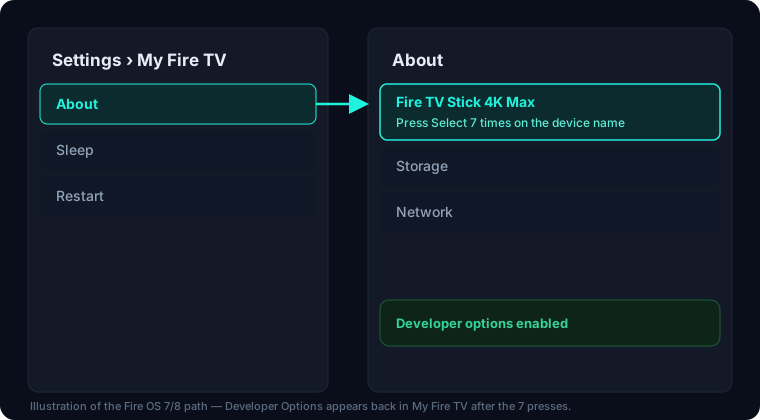
Amazon hides the Developer Options menu on current firmware. On Fire OS 7 and Fire OS 8 — which is everything Amazon ships today — you reveal it the same way you would on an Android phone: by tapping the device name seven times. If you have a much older stick that hasn't updated since early 2022, Developer Options may simply appear under My Fire TV without this unlock; everyone else needs the seven presses.
- 1From the Firestick home screen, select the gear icon on the right of the menu row to open Settings.
- 2Open My Fire TV (on some televisions with built-in Fire TV this is labeled Device & Software).
- 3Select About.
- 4Highlight the very first row — your device name, for example "Fire TV Stick 4K Max" — and press the center select button on the remote seven times in a row. On the seventh press a message appears at the bottom of the screen: "No need to be a developer, you are now a developer!"
- 5Press back once to return to My Fire TV. A new entry called Developer Options now appears in the list — this unlock is permanent, you never repeat it.
- 6Open Developer Options and select Install unknown apps. On Fire OS 8 this is a per-app list rather than one global switch, and it will look empty or show only system apps right now. That's expected — Downloader appears in this list only after you install it in the next step, so we'll come back here.
- 7Leave ADB Debugging off unless you plan to use the computer method at the end of this guide. It's not needed for Downloader installs and it's better security to keep it disabled.
Step 2: Install Downloader from the Amazon Appstore
Downloader by AFTVnews is the standard sideloading tool for Fire TV. It's a free, legitimate app listed in the official Amazon Appstore — it's simply a browser and file downloader with a remote-friendly interface, used by millions of Fire TV owners. You are not installing anything shady in this step; the Appstore itself distributes it.
- 1Go back to the Firestick home screen and select Find, then Search (or press and hold the microphone button on the remote and say "Downloader").
- 2Type "Downloader" and select it from the suggestions.
- 3Choose the orange app with the white arrow icon — "Downloader" by AFTVnews. Select Get or Download and wait a few seconds for it to install.
- 4Open Downloader once. Approve the prompt asking for permission to access files on the device — it needs this to save APK files.
- 5Now finish the permission from Step 1: go to Settings, My Fire TV, Developer Options, Install unknown apps, and turn the toggle ON for Downloader. Leave every other app in that list off — granting install rights only to the one app you actually use for it is the safest setup.
- 6That's the last settings change. Everything from here happens inside Downloader and your player app.
Step 3: Install TiviMate with Downloader code 272483
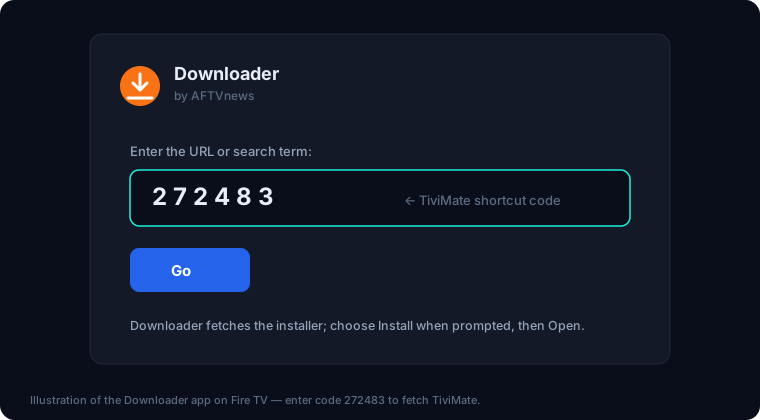
TiviMate is the player we recommend first on Firestick: it has the best program guide, favorites, catch-up, and recording of any Fire TV player, and it's built for remote-first navigation. Downloader supports short numeric codes that stand in for full URLs, and TiviMate's official code is 272483 — enter that instead of typing a long web address. If you want to compare options before committing, our best IPTV player for Firestick roundup covers the alternatives; any of them installs the same way with a different source.
- 1Open Downloader. The cursor lands on the URL/code field on the Home tab.
- 2Select the field and enter 272483 on the on-screen keypad, then select Go.
- 3Downloader fetches the official TiviMate APK. When the download finishes, an install screen appears — select Install (if you see "there was a problem parsing the package", the download was corrupted; delete it and repeat this step).
- 4When it says App installed, select Done rather than Open — this returns you to Downloader for cleanup.
- 5Downloader offers to delete the APK file it just downloaded. Select Delete, then Delete again to confirm. The installed app keeps working; the leftover installer file is just wasted storage.
- 6TiviMate now lives under Your Apps & Channels. Press and hold the Home button, choose Apps, highlight TiviMate, press the menu (三) button, and select Move to drop it on your front row.
- 7Open TiviMate. Free TiviMate handles one playlist; the optional Premium upgrade (about $9.99/year through its Companion phone app) unlocks multiple playlists, recording, and more. You don't need Premium to follow this guide — set up the free version first and decide later. Our TiviMate complete setup guide covers every setting once you're in.
Installing IPTV Smarters Pro instead — and the clone-APK warning
IPTV Smarters Pro is the other player people ask for by name, and its situation changed in 2025: it was removed from Google Play after a court order obtained by LaLiga, the Spanish football league. It was never reliably in the Amazon Appstore either, so on a Firestick it is now sideload-only, and the only legitimate source is the developer's own official website (iptvsmarters.com).
This is where you need to be genuinely careful. Because so many people search for a Smarters APK, third-party download sites and "free Downloader codes" lists are full of clone APKs — modified copies that look identical but harvest whatever you type into them. An IPTV player is one of the worst possible apps to install from an untrusted source, because the first thing you do in it is enter your server URL, username, and password. A poisoned clone sends that login straight to someone who will resell it or drain your connection allowance, and you won't know until your subscription mysteriously stops working. Never install Smarters from a random code, an APK mirror site, a Telegram link, or a YouTube video description.
If you don't already have a reason to want Smarters specifically, TiviMate from the previous step is the easier and safer path on Firestick. If you do want Smarters, here's the clean way.
- 1Open Downloader and select the URL field.
- 2Type the developer's official site address, iptvsmarters.com, exactly — don't follow a search result or a code from a list — and select Go. Downloader's built-in browser opens the site.
- 3Find the download section and choose the Android TV / Fire TV APK.
- 4When the APK finishes downloading, select Install, then Done, and let Downloader delete the APK file just like before.
- 5Open IPTV Smarters Pro from Your Apps & Channels and accept the terms screen. Setup instructions for the login screen are in the next section, and our IPTV Smarters Pro player page has the full walkthrough with screenshots of every field.
After the install: add your Xtream Codes login
An IPTV player is an empty shell until you feed it a subscription. Your StreamVega trial email contains two ways to connect: an Xtream Codes login (server URL + username + password) and an M3U URL. On Firestick, always choose Xtream Codes when the player offers it — it loads your live categories, movies, series, and the electronic program guide automatically, and it recovers from restarts more gracefully than a plain M3U playlist.
- 1Start your free trial if you haven't yet — the credentials email usually arrives within a few minutes. You need three things from it: the server URL (including the http:// and port number), your username, and your password.
- 2In TiviMate: on the welcome screen choose Add playlist, then Xtream Codes. In IPTV Smarters Pro: choose Login with Xtream Codes API.
- 3Enter the server URL exactly as it appears in the email — every character matters, including http:// and the port. The most common failure at this step is a typo, an added space at the end, or typing https where the email says http.
- 4Enter the username and password exactly as sent. Both are case-sensitive, and the on-screen keyboard loves to sneak in a trailing space — check the field before you confirm.
- 5Name the playlist anything you like (e.g. "StreamVega") and confirm. The first load pulls the full channel list and program guide, which can take a minute or two on a stick — let it finish.
- 6If the login is rejected or nothing loads, don't retype it five times: run your details through our subscription checker from any browser to confirm the account is active and the server is reachable, and glance at the status page to rule out a server-side issue in one click.
- 7Once channels appear, you're done with setup. If streams stutter in the evenings later on, that's a bandwidth issue rather than an install problem — our buffering fix guide walks through the causes in order of likelihood.
The ADB alternative, storage limits, and housekeeping
There's a second way to sideload that skips Downloader entirely: ADB (Android Debug Bridge) from a computer on the same network. Turn on ADB Debugging in Developer Options, note the stick's IP address under Settings, My Fire TV, About, Network, then from a computer run adb connect followed by adb install with the APK file you downloaded from the app's official site. Tools like adbLink wrap the same process in a point-and-click interface. ADB is handy when a hotel or campus network blocks Downloader's downloads, or when you're setting up several sticks and want to push the same APK to each — but for a single Firestick at home, Downloader is quicker and doesn't need a computer, which is why it's the main method in this guide. Turn ADB Debugging back off when you're done; leaving it on lets any device on your network attempt a connection.
A word on storage, because it's the most common post-install complaint: most Firesticks — the Lite, HD, 4K, and 4K Plus — ship with 8 GB, of which only around 4 to 5 GB is actually available after Fire OS takes its share. The 4K Max (2nd gen) doubles that to 16 GB. A player app is small, but caches, program-guide data, and a pile of other streaming apps add up fast, and a nearly-full stick misbehaves in ways that look like a bad subscription: apps crash on launch, the guide won't refresh, streams stutter.
Three habits keep a stick healthy: always let Downloader delete APK files after installing (the app keeps working without its installer), uninstall apps you don't use via Settings, Applications, Manage Installed Applications, and clear a player's cache from that same menu if it starts acting strangely before you try anything more drastic. Do that, and even an 8 GB stick runs IPTV comfortably for years.
Key takeaways
- →On Fire OS 8, Developer Options is hidden: go to Settings, My Fire TV, About, then press the select button on your device name seven times to unlock it.
- →Downloader code 272483 installs TiviMate directly. IPTV Smarters Pro is sideload-only now — get it from the developer's official site and avoid clone APKs that steal logins.
- →The Fire TV Stick 4K Select (2025) and the 2026 Fire TV Stick HD run Vega OS and cannot sideload apps at all — check your model before you start.
- →Use the Xtream Codes login from your trial email instead of the M3U URL: it loads categories and the program guide automatically.
- →Delete each APK after installing and uninstall apps you don't use — 8 GB sticks fill up fast, and low storage causes crashes and buffering.
FAQ
- Why can't I find the Downloader app on my new Fire TV Stick?
- You almost certainly have a Vega OS device — the Fire TV Stick 4K Select (2025) or the 2026 Fire TV Stick HD. Vega OS is Linux-based, not Android: Downloader isn't in its store, and sideloading is impossible with no workaround, including ADB. To sideload IPTV players you need a Fire OS model such as the Fire TV Stick 4K, 4K Plus, or 4K Max, or any Android TV / Google TV device.
- Is Downloader code 272483 still working in 2026?
- Yes — 272483 is the official Downloader shortcut for TiviMate and it still resolves to the developer's current APK. Codes are just short aliases for download URLs, so only use codes published by the app's own developer; random "best codes" lists are a common way clone APKs spread.
- Why is IPTV Smarters Pro not in the app store anymore?
- It was removed from Google Play in 2025 after a court order obtained by LaLiga, the Spanish football league, and it isn't reliably in the Amazon Appstore either. On Firestick it's sideload-only from the developer's official website, iptvsmarters.com. Avoid any other source — clone APKs of Smarters are widely used to steal Xtream logins.
- Is sideloading safe? Will it void my Firestick warranty?
- Sideloading is a built-in Android capability, not a hack — you're using Amazon's own Developer Options menu and an app distributed by the Amazon Appstore, and it doesn't void the warranty or modify the system. The safety question is entirely about where the APK comes from: stick to official developer sources and grant Install unknown apps to Downloader only.
- Do I need a VPN to install or watch IPTV on a Firestick?
- Not for the install — nothing in this guide requires one. Some users add a VPN later if their ISP throttles video streaming in the evenings, which shows up as buffering during peak hours; our buffering guide explains how to tell throttling apart from Wi-Fi or server issues before paying for anything.
- Should I use Xtream Codes or the M3U URL on my Firestick?
- Xtream Codes, whenever the player offers it. It loads categories, movies, series, and the program guide automatically and reconnects more reliably after restarts. Use the M3U URL only in a player that doesn't support the Xtream Codes API — the login details in your trial email work for both formats.
Related guides
Try it yourself — free for 24 hours
No credit card. We send your login by email or WhatsApp, usually within minutes.
- No credit card
- Login in minutes
- Cancel anytime