How to Set Up IPTV on MAG & Formuler Boxes (Portal Setup, 2026)
Updated July 14, 2026 · 12 min read · First published July 2026
On a MAG box, open System settings, then Servers, then Portals, enter the portal URL your provider issued for your MAC address, save, and restart the portal. On a Formuler box, open MYTVOnline 2 or 3, choose Add Portal, and connect with a portal URL, Xtream Codes login, or M3U link.
MAG and Formuler boxes remain the two most popular purpose-built IPTV receivers in the US, Canada, the UK, and Europe, and for good reason: they boot straight into live TV, their remotes are built for channel surfing, and their electronic program guides feel like real cable. But they set up differently from a Fire Stick or Smart TV app. Instead of typing a username into a generic player, a MAG box loads everything from a single 'portal' URL tied to the box's MAC address, while a Formuler box runs Infomir-style portals, Xtream Codes logins, and M3U playlists all inside its MYTVOnline app.
This guide walks through both platforms in detail, using the exact menu paths from Infomir's official documentation and Formuler's support knowledge base, so nothing here is guesswork. It covers Linux-based MAG models such as the 250, 254, 322, 324, 420, and the 4K 520/524 series, plus Formuler's Z8, Z Alpha, Z+ Neo, GTV, Z10, Z11 Pro Max, and Z12 lines. You will learn where to find your MAC address, how to enter a portal URL correctly, how MYTVOnline 2 differs from MYTVOnline 3, and how to fix the classic 'loading portal' hang caused by time-sync problems.
One note before you start: StreamVega delivers M3U and Xtream Codes credentials with every subscription, and portal URLs are provided per line where the server supports them. Formuler owners can connect immediately with the Xtream login from their welcome email; MAG owners should send their MAC address to support so a portal URL can be issued for their line. Either way, you can prove everything works on your own hardware with a free 24-hour trial before paying for a plan.
What You Need Before You Start
Setup takes about ten minutes once you have four things in hand: your box, a working internet connection, your subscription credentials, and (for MAG) your MAC address. Wired Ethernet is strongly recommended over Wi-Fi on both platforms; these boxes decode high-bitrate live streams, and a cable removes the single biggest cause of buffering. If you must use Wi-Fi, connect to the 5 GHz band and keep the box within sight of the router — our buffering guide covers this in depth.
Your credentials depend on the login type your provider issued. StreamVega lines come with an Xtream Codes login (server URL, username, and password) and an M3U playlist link, and where the underlying server supports Stalker middleware, support can also issue a portal URL for a specific device MAC. MAG boxes only speak the portal protocol, so a portal URL is required for MAG; Formuler boxes accept all three formats, so you can start with the Xtream login you already have.
Finally, update your box before adding anything. On MAG, firmware updates are pushed through the inner portal or via System settings, and severely outdated firmware is a common cause of portals refusing to load. On Formuler, accept any Android system update and any MYTVOnline app update offered on first boot — MYTVOnline 3 in particular has received steady fixes through 2025 and 2026.
- ✓Have a paper and pen (or your phone camera) ready to record the MAC address from the sticker under the box — you will need to send it to your provider before the portal will authenticate.
- ✓If you have not subscribed yet, grab a free 24-hour trial first so you have real credentials to test with, then compare plans once your box is working.
Portal URL vs M3U vs Xtream Codes: Which Login Does Your Box Use?
The three login formats confuse more new users than any menu ever will, so it is worth thirty seconds to understand them. A Stalker portal (the system MAG boxes use, built on Infomir's Ministra/Stalker middleware) is a single URL — typically shaped like http://example-host.tv/c/ — that the box loads on boot. There is no username or password on the device; the server recognizes the box by its MAC address, which your provider must register against your line before anything will play. That is why a portal URL that works on one MAG box will show 'blocked' or an empty channel list on another.
Xtream Codes API logins are the opposite: a server URL plus a username and password, with no MAC binding. Any device or app that supports the Xtream API — including Formuler's MYTVOnline — can log in with the same three values. An M3U playlist is the most universal format of all: one long URL that returns the full channel list as a text file, usually paired with a separate XMLTV/EPG URL for the program guide. Xtream and M3U are actually two doors into the same account on most modern panels; our M3U vs Xtream Codes comparison explains when to prefer each.
Practical rule of thumb for this guide: MAG owners need a portal URL and must send their MAC address to their provider first. Formuler owners can use whichever they were given — Formuler's own support documentation confirms MYTVOnline accepts MAC/ID (Stalker) portals, Xtream Codes API logins, and M3U playlists. StreamVega issues Xtream and M3U credentials with every line, and support provides a portal URL per line where the server supports it, so MAG users should contact support with their MAC before starting the steps below.
- ✓Never guess at the portal URL shape. Some servers use http://host/c/, others use http://host:8080/c/ or a /stalker_portal/c/ path. Copy it exactly, character for character, from what support sends you.
- ✓You can sanity-check your Xtream or M3U credentials in seconds on our connection checker before touching any box menus — if they fail there, no amount of box configuration will help.
Find Your MAG Box's MAC Address and Request a Portal URL
Every Infomir MAG box has a unique MAC address beginning with 00:1A:79 — that prefix is Infomir's manufacturer ID, and IPTV panels use it to recognize genuine MAG hardware. Your provider registers this exact 12-character value against your subscription line, so the very first step of any MAG setup is finding it and sending it in. Get one character wrong and the portal will load an empty screen or an 'access denied' message even though everything else is correct.
The MAC address is printed in three places: on a sticker on the bottom or back of the box itself, on the retail barcode box it shipped in, and inside the device menus. The sticker is the fastest source, but if the box is already mounted behind a TV, the on-screen value is authoritative — read it from the device info screen rather than trusting an old email.
- 1Flip the box over and read the sticker: the MAC is the 12-character code in the format 00:1A:79:XX:XX:XX, printed alongside the serial number and model number.
- 2To confirm it on screen instead, open the inner portal menu and go to Settings, then System settings, then Device info — the MAC address is listed with the model, serial number, and firmware version.
- 3Photograph or write down the full MAC exactly, including colons. 0 (zero) and O, 8 and B are the usual misread characters.
- 4Send the MAC to your provider and ask for the portal URL for your line. For StreamVega, message support with your MAC and the email on your account; where the server supports Stalker access, you will receive a portal URL formatted for your line, typically ending in /c/.
- 5Wait for confirmation that the MAC has been registered before entering the URL on the box — entering a portal URL before the MAC is mapped is the number-one cause of a 'working' setup that shows zero channels.
- ✓Buying a used MAG box? Factory-reset it (System settings, then Restore Default / Reset) before adding your portal, so a previous owner's portals and settings do not interfere.
- ✓Some gray-market 'MAG clone' boxes fake the 00:1A:79 prefix and get blocked by upstream panels. If a known-good portal URL refuses your box, ask support to verify the MAC is being seen by the server.
MAG Portal Setup: System Settings → Servers → Portals (250/254/322/324/420/520)
All Linux-based MAG models — from the veteran 250 and 254 through the 322, 324, 349, and the 4K-capable 420, 520, and 524 series — use the same embedded portal interface, so these steps are identical across the range. The menu path, straight from Infomir's official documentation, is System settings, then Servers, then Portals. The box supports two portals by default (Portal 1 and Portal 2) and up to eight in Multiportal mode, which is handy if you keep a backup line.
If your box boots directly into a provider's portal and you cannot see the inner menu, reboot the box and press the Settings (or SET/SETUP) button on the remote while the 'Loading...' screen is showing — this drops you into the system settings before any portal loads. On newer 4K models the button is labeled Settings; on older remotes it is SETUP or SET.
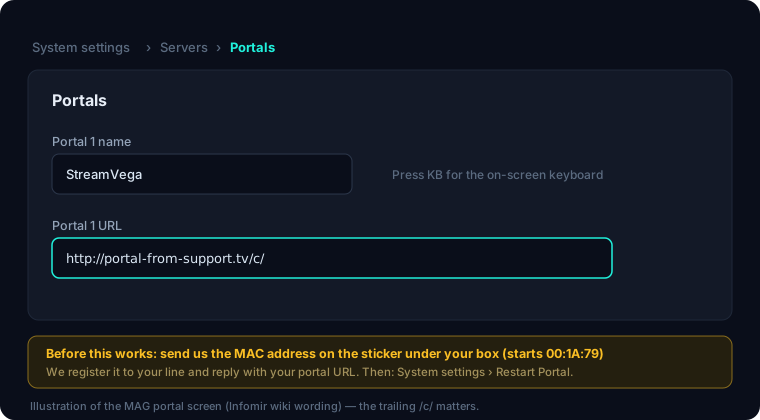
- 1From the inner portal home screen, open Settings, then System settings, then select Servers, then Portals.
- 2Highlight the Portal 1 name field and press the KB button on the remote to bring up the on-screen keyboard. Type a friendly name, e.g. StreamVega, then dismiss the keyboard with KB again — do not press Enter yet.
- 3Press Down to move to the Portal 1 URL field and press KB to reopen the keyboard.
- 4Type the portal URL exactly as your provider issued it, e.g. http://example-host.tv/c/ — include the port if one was given (such as :8080) and keep the trailing /c/ path if present. The box will warn you on save if the value is malformed.
- 5Press Enter on the on-screen keyboard to save the entered data, then press Exit on the remote to leave the Portals screen.
- 6Back in System settings, choose Restart Portal (or simply reboot the box from the power menu). A portal change never takes effect until the portal is restarted — this reboot step is not optional.
- 7After the restart the box should load your provider's portal: you will see a channel list and EPG populate. If it loads but shows no channels, the MAC has not been registered yet — recheck with support.
- ✓Need more than two lines? Enable Multiportal mode under the portals settings (the 'More' section on current firmware) to store up to eight portals and pick one at boot.
- ✓Set your time zone while you are in System settings — a wrong time zone shifts the entire EPG by hours even when everything else works.
- ✓MAG boxes cannot play plain M3U links natively; the portal is the only supported login. If you were only issued M3U/Xtream credentials, ask support for the portal URL for your line rather than trying to convert formats yourself.
Formuler Setup with MYTVOnline 3 (Z10, Z11 Pro Max, Z12 Series)
Formuler's current app, MYTVOnline 3, ships pre-installed on the Z12 Ultra, Z11 Pro and Z11 Pro Max, the Z10 family (Z10, Z10 SE, Z10 Pro, Z10 Pro Max), and the Z mini. It runs on Android TV, so the box behaves like any Android device until you open the app, at which point it becomes a dedicated IPTV receiver with a cable-style guide, catch-up, and USB recording. Portals live under Menu, then Content Manager, then Content Sources in MYTVOnline 3 — a different location than MYTVOnline 2, which trips up upgraders.
MYTVOnline 3 accepts all three login types on the Add Portal screen: Stalker (portal URL plus MAC), Xtream Codes (server URL, username, password), and M3U (playlist URL). For StreamVega, the fastest route is the Xtream Codes option using the server URL, username, and password from your welcome email — no MAC registration needed, and the app pulls channels, VOD, and the EPG automatically. You can add several portals side by side and switch between them, which makes running a free trial next to an existing service painless.
- 1Connect the box to the internet first: Settings, then Network & Internet, then join Wi-Fi or plug in Ethernet (preferred).
- 2Open MYTVOnline 3 from the home screen, press the menu button (three-line icon), and go to Content Manager, then Content Sources (on some builds: Settings, then Edit Portals), then choose Add Portal.
- 3Pick the portal type. For a StreamVega Xtream login choose Xtream Codes, then enter a Portal Name (e.g. StreamVega), the Server URL exactly as issued including any port, your Username, and your Password.
- 4For a Stalker/MAC portal instead, choose the Stalker type and enter the portal URL your provider issued; the app presents the box's MAC-style ID, which must be registered with the provider just like a real MAG box.
- 5For an M3U playlist, choose M3U and paste the playlist URL; add the XMLTV/EPG URL if the app asks for one so the guide populates.
- 6Select Connect and wait a few seconds while channels and the EPG load, then press OK on any channel to confirm playback.
- 7Optional polish: group favorites, hide unwanted categories, and set a PIN under Settings, then Parental Controls.
- ✓If the EPG comes up empty after connecting, force a refresh: Settings, then EPG, then Refresh — the guide downloads on a schedule and a manual refresh fixes first-boot gaps.
- ✓MYTVOnline 3 supports USB recording: plug in a drive and press the red Record button on a live channel to test it.
- ✓Typos are the top failure cause. Server URLs with a port (e.g. :8080) must include it, and there is no space anywhere in an Xtream username or password.
Formuler Setup with MYTVOnline 2 (Z8, Z8 Pro, Z Alpha, Z+ Neo, GTV)
Older but still hugely popular Formuler models — the Z8 and Z8 Pro, Z Alpha, Z+ Neo, and the GTV family — run MYTVOnline 2. The app is functionally similar to version 3 but the menu layout differs: portals are managed under Menu, then Connections, per Formuler's own support documentation. Like MYTVOnline 3, it supports MAC/ID (Stalker) portals, Xtream Codes API logins, and M3U playlists, and it can store multiple portals simultaneously.
Formuler is explicit in its knowledge base that the device includes no content and that only your service provider can supply a portal URL or login — so as with every step in this guide, have your StreamVega credentials ready before you open the app. If your provider uses MAC-based Stalker access on a Formuler, the ID you send them is the app's MAC-style identifier beginning 00:1A, shown on the portal setup screen.
- 1Make sure the box is online (Settings, then Network), then open MYTVOnline 2 from the launcher.
- 2Open the main menu and select Connections, then choose + Add Portal.
- 3Enter a Portal Nickname (e.g. StreamVega), then choose how to connect: for Xtream Codes, enter the server URL with port plus your username and password; for a Stalker portal, enter the portal URL only and register the displayed MAC ID with your provider; for M3U, paste the playlist URL and optional EPG XML URL.
- 4Save and select Connect. The channel list and guide should populate within seconds on a healthy line.
- 5To run more than one service, repeat Add Portal — MYTVOnline 2 lists all saved portals under Connections and lets you switch at launch.
- ✓GTV and Z8-era boxes are older hardware: keep the firmware updated and prefer Ethernet, since their Wi-Fi radios are the weakest link for 4K/50fps sports streams.
- ✓If Add Portal seems to be missing, update MYTVOnline 2 from the Formuler app market — very old builds hid portal management behind a firmware update.
Troubleshooting: 'Loading Portal' Hangs, Wrong Time, and Empty Channel Lists
Ninety percent of MAG and Formuler setup failures come down to four causes: a mistyped URL, an unregistered MAC, a clock that is wrong, or a network block. Work through them in that order before assuming the service is down — and if you do suspect an outage, check the service status page first, because a server-side incident makes every local fix pointless.
The time-sync issue deserves special attention on MAG boxes because its symptoms look unrelated: the box hangs on 'loading portal', shows 'Time on the device is not synchronised', or connects but refuses to play anything. MAG boxes set their clock from an NTP time server on boot; if that server is unreachable or wrong, the box's clock drifts, secure connections to the portal fail, and the portal never finishes loading. The fix is to point the box at a reliable public NTP pool and reboot.
On the Formuler side, the equivalent problems are usually app-level: a stale EPG, a frozen app after days of uptime, or Wi-Fi that cannot sustain the stream bitrate. Android gives you more recovery tools — force-stopping the app, clearing its cache, or simply rebooting the box solves most one-off glitches. For persistent stutter rather than outright failure, follow our buffering troubleshooting guide.
- 1Portal loads but zero channels (MAG): the MAC is not registered on your line. Read the MAC from Device info on screen, resend it to support, and restart the portal after confirmation.
- 2Stuck on 'loading portal' or time-sync errors (MAG): reboot the box and press Settings/SETUP during the 'Loading...' screen to enter system settings, open the General (time) section, set the NTP server to pool.ntp.org (North America: us.pool.ntp.org; Europe: europe.pool.ntp.org), set your correct time zone, then exit and confirm the reboot prompt.
- 3'Page cannot be loaded' or instant portal error (MAG): the URL is wrong. Re-enter it character for character under System settings, then Servers, then Portals — check http vs https, the port number, and the trailing /c/ — then Restart Portal.
- 4Formuler portal will not connect: verify the internet works in another app, then reopen the portal entry and check every field for typos; test the same credentials on our connection checker to rule the line in or out in seconds.
- 5Formuler app frozen or behaving oddly: Settings, then Apps, then MYTVOnline 3 (or 2), then Force Stop, and reopen; reboot the box if it persists.
- 6Everything configured correctly but streams still fail on both platforms: check the status page for a server incident, try a wired connection, and as a last resort test with your ISP router's default DNS in case a filtering DNS service is blocking the host.
- ✓After any portal URL change on a MAG box, restart the portal or reboot — the old portal stays cached in memory until you do.
- ✓Write down your working configuration (portal URL, NTP server, time zone) once everything runs. Future you, staring at a factory-reset box, will be grateful.
- ✓Persistent problems that survive every step above are worth a support ticket with photos of your settings screens — contact support and include your MAC or username so the line can be checked server-side.
Key takeaways
- →MAG boxes authenticate by MAC address: your provider locks the line to the MAC printed on the sticker under the box (it starts with 00:1A:79), so you send the MAC first and enter the portal URL second.
- →The MAG menu path has not changed in years: System settings, then Servers, then Portals, then enter the Portal 1 URL exactly as issued (usually ending in /c/), save, and restart the portal.
- →Formuler boxes are more flexible: MYTVOnline 2 (Z8, Z Alpha, Z+ Neo, GTV) and MYTVOnline 3 (Z10, Z11, Z12 series) accept MAC/Stalker portals, Xtream Codes logins, and M3U playlists side by side.
- →Most 'loading portal' hangs are a wrong URL, a portal not yet mapped to your MAC, or a bad clock: set the NTP server to pool.ntp.org and the correct time zone before blaming the service.
- →StreamVega delivers M3U and Xtream Codes logins by default; if your line supports a Stalker portal, support can issue a portal URL for your MAG's MAC address, and you can test everything on a free 24-hour trial.
FAQ
- Where do I find the MAC address on my MAG box?
- It is printed on the sticker on the bottom or back of the box and on the retail carton, formatted 00:1A:79:XX:XX:XX. You can also read it on screen under Settings, then System settings, then Device info, which is the authoritative source if stickers have worn off. Your provider needs this exact value to activate a portal for your line.
- Why is my MAG box stuck on 'loading portal'?
- The three usual causes are a mistyped portal URL, a MAC address that has not been registered by your provider, or a wrong device clock. Check the URL character by character (including any port and the trailing /c/), confirm your MAC is active on the line, and set the NTP server to pool.ntp.org with the correct time zone in system settings, then reboot. If all three check out, look at the provider's status page before factory-resetting.
- Do I need to reboot my MAG box after changing the portal URL?
- Yes. A new or edited portal URL does not take effect until you restart the portal (System settings, then Restart Portal) or reboot the box entirely. Skipping the restart is the most common reason a corrected URL 'still doesn't work' — the box is still running the old cached portal.
- Can I use an M3U playlist or Xtream Codes login on a Formuler box?
- Yes. Formuler's MYTVOnline 2 and 3 both support MAC/ID (Stalker) portals, Xtream Codes API logins, and M3U playlists, and you can store several portals at once. Xtream Codes is usually the best choice because it needs no MAC registration and fills in live TV, VOD, and the EPG automatically. MAG boxes, by contrast, only support the Stalker portal format.
- What is the difference between a portal URL and an Xtream Codes login?
- A portal URL is a single Stalker-middleware address (often ending in /c/) with no username — the server authenticates your box by its registered MAC address. An Xtream Codes login is a server URL plus a username and password that works on any device without MAC binding. Most modern panels expose the same subscription both ways, which is why one line can serve a MAG box and a phone app at the same time.
- Does StreamVega work on MAG and Formuler boxes?
- Yes. Every StreamVega line includes M3U and Xtream Codes credentials, which work immediately in Formuler's MYTVOnline app. For MAG boxes, portal URLs are issued per line where the server supports Stalker access — send your box's MAC address to support and you will get a portal URL to enter under System settings, then Servers, then Portals. You can verify everything on your own hardware with the free 24-hour trial before subscribing.
Related guides
Try it yourself — free for 24 hours
No credit card. We send your login by email or WhatsApp, usually within minutes.
- No credit card
- Login in minutes
- Cancel anytime