How to Set Up IPTV on Apple TV, iPhone & iPad (2026 Guide)
Updated July 14, 2026 · 11 min read · Expanded with 2026 App Store player lineup — July 2026
On Apple TV, open the App Store, install an IPTV player — IPTVX, Smarters Player Lite, iPlayTV, or GSE Smart IPTV Pro — then add a playlist with the Xtream Codes login (server URL, username, password) from your provider email. iPhone and iPad use the same apps and steps, and most sync playlists across devices via iCloud.
Apple devices don't allow sideloading, so there's no Downloader app, no developer-mode toggle, and no APK files in this guide — you install an IPTV player straight from the App Store and type in a login. That restriction sounds limiting, but in practice it makes Apple TV the easiest IPTV platform of all: every app is reviewed by Apple, updates arrive automatically, and setup takes about five minutes from a fresh device to live channels.
The catch is knowing which apps to trust, because the App Store's IPTV shelf changed a lot between 2022 and 2026 — the original IPTV Smarters vanished, lookalike clones multiplied, and pricing models shifted from one-time purchases to subscriptions. This guide covers the players that are actually on the store in 2026 and what they cost, the exact add-playlist flow for each, iPhone and iPad setup, AirPlay as a fallback, and the Apple-specific gotchas nobody mentions. Grab your login from a free StreamVega trial and follow along.
The 2026 App Store player lineup (and what each costs)
Four players dominate the Apple IPTV scene in 2026, and all of them are legitimate App Store listings you can install without any workarounds. IPTVX (developer Bending X) is the most polished: a native app for Apple TV, iPhone, iPad, Mac and even Vision Pro, free to download with a FULL subscription — around $3.99/month or $28.99/year at the time of writing — that unlocks unlimited playlists, Dolby Vision/HDR10 playback, AirPlay 2 casting and iCloud sync of favorites and settings across your devices.
Smarters Player Lite (developer WHMCS SMARTERS) is the official Apple version from the IPTV Smarters team. It's free with a $1.99 in-app unlock, runs on iPhone, iPad, Apple TV and Apple Silicon Macs, and takes the same Xtream Codes or M3U login as IPTV Smarters Pro on other platforms. Important honesty note: the full "IPTV Smarters Pro" app is not on Apple's App Store — if you search that name you'll find a pile of similarly named apps ("Smarters Pro", "Smarters IPTV Player", "IPTV Smarters Player Lite Pro") from unrelated developers riding the brand. Check the developer name before installing; WHMCS SMARTERS is the real one.
iPlayTV (developer Andre Silva) is an Apple TV exclusive — no iPhone version — sold as a $5.99 one-time purchase with no subscription. It supports remote M3U playlists, file uploads and Xtream Codes with catch-up, and its stripped-back, remote-first interface is a favorite with people who just want a fast channel list. GSE Smart IPTV (developer droidvision / GSE Technology) is the veteran: GSE Smart IPTV Pro costs $2.99 one-time on iPhone/iPad and $4.99 one-time on Apple TV as a separate purchase. It still works well, but note the tvOS version has gone long stretches without updates, and the old free GSE listing has come and gone from the store — another case where checking the developer name matters.
- ✓IPTVX — free + ~$3.99/mo or ~$28.99/yr FULL; Apple TV, iPhone, iPad, Mac, Vision Pro; the premium pick.
- ✓Smarters Player Lite — free, $1.99 unlock; the official Apple app from the IPTV Smarters developer.
- ✓iPlayTV — $5.99 one-time; Apple TV only; no subscription, ever.
- ✓GSE Smart IPTV Pro — $2.99 (iOS) / $4.99 (tvOS) one-time; long-serving but updated less often.
- ✓Prices are US App Store figures as of July 2026 and can change — the App Store listing always shows the current price before you confirm.
What you need before you start
You need an Apple TV HD or Apple TV 4K running a reasonably current tvOS — anything sold since 2017 qualifies, and the same steps apply on the newest 4K boxes. For iPhone and iPad, any device on a recent iOS/iPadOS works; these apps are lightweight. Internet-wise, aim for at least 15 Mbps for stable HD and 40 Mbps if your plan and server offer 4K streams; if your Wi-Fi is marginal, the Apple TV 4K's Ethernet port (on the higher-storage model) is the single best upgrade you can make.
The other thing you need is a login. IPTV subscriptions are delivered as either an Xtream Codes login — a server URL, username and password — or an M3U playlist URL that bundles the same details into one long link. Every player in this guide accepts both, but Xtream Codes is the better choice on Apple apps because it loads live TV, movies and series into separate organized sections and pulls the EPG automatically. If you're not sure which you have, our M3U vs Xtream Codes guide breaks it down. A StreamVega trial emails you both formats within minutes, no credit card, so you can test the full setup before paying anything.
Install a player on Apple TV (tvOS App Store)
- 1From the Apple TV home screen, open the App Store app (you'll need to be signed in with your Apple Account — check Settings → Users and Accounts if unsure).
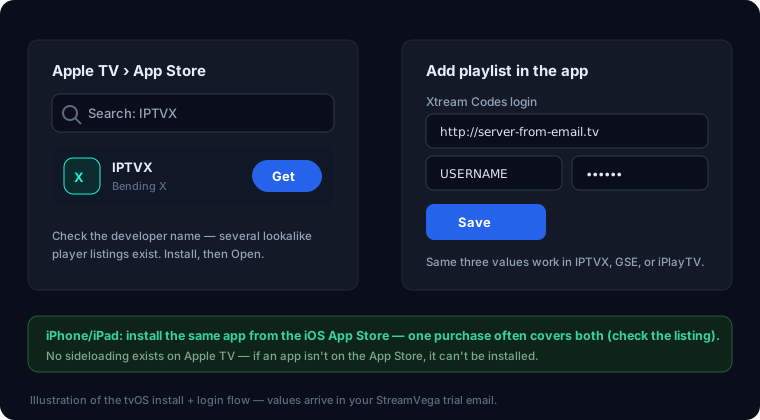
- 2Select the Search tab at the top of the screen and type the player name — "IPTVX", "Smarters Player Lite", "iPlayTV" or "GSE Smart IPTV Pro". You can also dictate it by holding the Siri button on the remote.
- 3Verify the developer name under the app title before installing: Bending X for IPTVX, WHMCS SMARTERS for Smarters Player Lite, Andre Silva for iPlayTV, droidvision for GSE. Lookalike apps are the number-one Apple IPTV mistake.
- 4Click Get (or the price button for paid apps) and confirm the purchase. Free apps install immediately; paid ones charge the payment method on your Apple Account.
- 5Wait for the icon to appear on your home screen and open the app. First launch usually shows an empty state with an "Add Playlist" or "+" prompt — that's where your login goes next.
- 6If you already bought the app on iPhone and it's a universal purchase (IPTVX and Smarters Player Lite are), it appears under Purchased in the tvOS App Store at no extra charge — no need to buy twice. GSE's iPhone and Apple TV versions are separate purchases.
Add your playlist: Xtream Codes vs M3U, app by app
Every app in this lineup asks for the same three pieces of information when you choose the Xtream Codes route: a playlist name (anything — "StreamVega" works), the server URL exactly as written in your welcome email including the http:// and port, and your username and password. Type them carefully with the Apple TV remote — the on-screen keyboard makes it easy to add a stray space at the end of a field, which is the most common cause of an "invalid login" error. Tip: if your iPhone is nearby, tvOS pops up a notification that lets you type into Apple TV text fields from the phone keyboard, which is dramatically faster.
The flows differ slightly per app. In IPTVX, press the + button (or Settings → Playlists → Add Playlist), choose Xtream Codes as the type, fill in the four fields, and save — live, movies and series populate as separate tabs. In Smarters Player Lite, choose "Login with Xtream Codes API" on the first screen, enter the same details, and it lands you on the familiar Smarters dashboard. In iPlayTV, select Add Playlist → Xtream Codes, and note it also offers Remote File for M3U URLs and local file upload. In GSE, open the menu → Xtream-Codes API → tap +, and use "Remote Playlists" instead if you're adding an M3U link.
If you only have an M3U URL, every app accepts it under the playlist type usually labeled "M3U URL", "Remote Playlist" or "Remote File" — paste the whole link and add your provider's EPG URL separately if the app asks for one. Xtream logins fetch the EPG automatically, which is one more reason to prefer them on Apple. Once channels load, give the EPG a minute or two to download on first run; a blank guide right after setup is normal, not broken.
iPhone and iPad setup (plus iCloud sync)
- 1Open the App Store on your iPhone or iPad, search for the same player you chose for Apple TV, and confirm the developer name before installing — the clone problem is worse on the iPhone store than on tvOS.
- 2Install and open the app, then add your playlist exactly as on Apple TV: choose Xtream Codes (or M3U), enter the server URL, username and password from your provider email, and save.
- 3Let the channel list and EPG load, then test a live channel on Wi-Fi. If it plays on your phone but not your Apple TV, you've just proven the login is fine and the issue is the TV-side app or network.
- 4Turn on the app's sync option if it has one — IPTVX's FULL tier syncs playlists, favorites, hidden channels and settings across iPhone, iPad, Apple TV and Mac via iCloud, so you set up once and every device follows.
- 5For apps without cloud sync (iPlayTV is TV-only anyway; GSE's versions are independent), just enter the same login on each device — your provider account works on all of them simultaneously up to your plan's connection limit.
- 6Add the app to your iPhone's Home Screen front page if you commute with it — live TV over 5G works well at HD quality, and cellular data use runs roughly 2–3 GB per hour of HD viewing, so keep an eye on capped plans.
AirPlay and screen mirroring: the fallback that always works
Because the iPhone and Apple TV share the AirPlay protocol, you always have a second route to the big screen: play the stream on your phone and send it to the TV. It's genuinely useful in three situations — a tvOS app is misbehaving and you want TV playback while you troubleshoot, you're at someone else's place with an Apple TV or AirPlay 2 TV but don't want to install and log in on their hardware, or you're using an iPhone-only player and don't want to buy a second app.
There are two flavors. In-app AirPlay streams just the video: start playback in your iPhone player, tap the AirPlay icon in the player controls (or Control Center → the AirPlay audio/video button), pick your Apple TV, and the phone becomes a remote while the TV plays the full-quality stream. Screen mirroring clones your whole iPhone display instead — swipe into Control Center, tap Screen Mirroring, choose the Apple TV — and works even when an app hides its AirPlay button, at the cost of slightly softer quality and your notifications appearing on the TV.
One honest caveat: some players gate AirPlay behind their paid tier — IPTVX lists AirPlay 2 casting as a FULL feature — and a few streams that use certain formats mirror with audio out of sync. Treat AirPlay as the fallback it is, not the main setup: a native tvOS app is smoother, keeps your phone free, and doesn't drain its battery. If streams stutter over AirPlay but play fine natively, that's your Wi-Fi doing double duty (phone receives, then re-sends to the TV) — our buffering guide covers the fixes.
Apple-specific gotchas, testing tricks and multi-device notes
No sideloading — really. On Apple TV there is no mechanism to install apps outside the App Store, full stop; guides claiming to sideload IPTV apps onto tvOS are describing things that don't exist. On iPhone, the only exceptions are EU alternative app marketplaces (which so far carry no mainstream IPTV players) and signing apps yourself with a developer account — a $99/year, re-sign-every-week hassle that makes no sense when good players cost $1.99–$5.99. Plan around the App Store, and if a listed app disappears (it happens — the original IPTV Smarters did in 2022), your login still works in any other player; nothing about your subscription is tied to one app.
Use VLC as a neutral tester. VLC by VideoLAN is free on both the iOS and tvOS App Stores, and because it plays a raw M3U playlist or single stream URL with zero configuration, it's the perfect diagnostic: if VLC plays your playlist but your IPTV app won't, the app or its settings are the problem; if VLC fails too, the issue is the login, your network, or the server. You can also check your subscription status independently with our subscription checker — it validates your login server-side in seconds without touching any app.
Multi-device and family notes: apps and in-app purchases live on your Apple Account, so one IPTVX subscription or GSE purchase covers all your own devices — and purchases from developers who enable Family Sharing can extend to family members' Apple Accounts too (check the listing's Family Sharing line). Your IPTV plan is the real limit: StreamVega plans allow a set number of simultaneous connections, so the same login on your Apple TV, iPhone and iPad is fine as long as you don't exceed concurrent streams. Finally, remember channel lineups and 4K availability vary by server — browse the channel list during your free trial and confirm the channels you actually care about play smoothly on your Apple hardware before you commit.
Key takeaways
- →Apple doesn't allow sideloading on Apple TV, so every player comes from the tvOS App Store — which makes Apple setup the simplest of any platform.
- →The 2026 lineup: IPTVX (free + ~$3.99/mo or ~$28.99/yr FULL), Smarters Player Lite (free, $1.99 unlock), iPlayTV ($5.99 one-time, Apple TV only), and GSE Smart IPTV Pro ($2.99 iOS / $4.99 tvOS one-time).
- →The full "IPTV Smarters Pro" app isn't on Apple's App Store — Smarters Player Lite by WHMCS SMARTERS is the same developer's official Apple version, and the store is full of unrelated lookalikes.
- →An Xtream Codes login (server URL + username + password) is the easiest way to add your subscription; every player above also accepts an M3U URL.
- →If a tvOS app misbehaves, play the stream in an iPhone app and AirPlay it to the Apple TV — a reliable fallback while you troubleshoot.
FAQ
- Which is the best IPTV player for Apple TV in 2026?
- IPTVX is the most polished and feature-rich if you're happy with a subscription (~$28.99/year for FULL); iPlayTV is the best one-time-purchase pick at $5.99 with no recurring cost; Smarters Player Lite is the best free starting point. All three take the same Xtream Codes login, so try them in that order during your trial.
- Is IPTV Smarters Pro on the Apple App Store?
- Not under that name. The IPTV Smarters developer (WHMCS SMARTERS) publishes Smarters Player Lite as its official iPhone, iPad and Apple TV app — free with a $1.99 unlock. Other "Smarters Pro" listings on the store are from unrelated developers, so check the developer name before installing.
- Can I sideload IPTV apps on Apple TV or iPhone?
- Not on Apple TV — tvOS has no sideloading mechanism at all. On iPhone it's technically possible via EU alternative marketplaces or self-signing with a developer account, but no mainstream IPTV player distributes that way and the workarounds cost more effort than the $1.99–$5.99 the App Store apps charge. The App Store is the practical path.
- Do I have to pay twice for iPhone and Apple TV?
- Usually not. IPTVX and Smarters Player Lite are universal — one download or subscription covers iPhone, iPad and Apple TV on the same Apple Account. GSE Smart IPTV Pro is the exception: the iOS ($2.99) and tvOS ($4.99) versions are separate purchases. iPlayTV only exists on Apple TV.
- Why won't my playlist load on Apple TV when it works on my phone?
- Nine times out of ten it's a typo — the tvOS keyboard makes it easy to add a trailing space to the server URL or password. Re-enter the details using your iPhone as the keyboard (tvOS prompts you automatically), verify the login with our subscription checker, and test the playlist in free VLC to rule the app in or out.
- Can I AirPlay IPTV from my iPhone to any TV?
- To any Apple TV or AirPlay 2-compatible smart TV, yes — start playback in your iPhone player and tap the AirPlay icon, or use Control Center screen mirroring if the app hides it. Note some players reserve AirPlay for their paid tier, and native tvOS playback is smoother, so treat AirPlay as a fallback rather than the main setup.
Related guides
Try it yourself — free for 24 hours
No credit card. We send your login by email or WhatsApp, usually within minutes.
- No credit card
- Login in minutes
- Cancel anytime