How to Set Up IPTV on an Android TV Box / Google TV (2026)
Updated July 14, 2026 · 11 min read · First published July 2026
Install an IPTV player on your box — TiviMate is on the Google Play Store, so search for it, install it, then add a playlist using the Xtream Codes login details from your IPTV provider. If an app isn't on the Play Store, sideload it with the free Downloader app after enabling Developer Options.
Android TV boxes are the most flexible way to watch IPTV. Unlike a Firestick or Apple TV, an Android box gives you the full Google Play Store, easy sideloading, USB ports and — on better boxes — gigabit Ethernet. Whether you own an Nvidia Shield, a Walmart onn box, a Google TV Streamer / Chromecast with Google TV, or a no-name box from Amazon, the setup below works the same way: install a player app, then log in with the details your IPTV provider sends you.
This guide covers both install routes — the Play Store method (easiest, works for TiviMate) and the Downloader sideload method (needed for IPTV Smarters Pro and other delisted apps) — plus the device-specific quirks and network settings that actually affect picture quality. If you don't have a subscription yet, start a free 24-hour trial first so you have real login credentials to test with; every step below assumes you have your server URL, username and password ready.
What you need before you start
Setup takes about 10 minutes, but only if you have everything in front of you first. You need three things: an Android TV or Google TV device connected to the internet, a Google account signed in on that device (required for the Play Store), and your IPTV login details from your provider.
When you sign up with StreamVega, your credentials arrive by email as an Xtream Codes login — a server URL (something like http://line.example.com:80), a username and a password. Some providers only send an M3U playlist link instead; both formats carry the same channels, but the Xtream Codes login is easier to type on a TV remote and unlocks proper EPG and VOD menus in most apps. If you're not sure which you have, see our explainer on M3U vs Xtream Codes.
One honest note before you buy hardware: not all Android boxes are equal. A $20 no-name box with 1 GB of RAM will technically run these apps, but it will struggle with 1080p60 sports and 4K streams. If you're buying new in 2026, the Walmart onn 4K boxes are the best budget option, the Google TV Streamer is the mainstream pick, and the Nvidia Shield TV is still the gold standard for IPTV thanks to its gigabit Ethernet port and hardware 4K decoding.
- ✓Keep your credentials email open on your phone while you set up — you'll be typing the server URL character-by-character with the remote.
- ✓If your box is fresh out of the box, let it finish all system and Play Store updates before installing anything. Half of 'app won't install' problems are just a stale Play Store.
Google TV vs Android TV: which one do you have?
You'll see both names in menus and guides, and the difference matters for exactly one reason: the settings paths are slightly different. Android TV is the underlying operating system; Google TV is the newer launcher/interface that runs on top of it. The Google TV Streamer, Chromecast with Google TV, onn boxes and most 2022+ smart TVs from Sony, TCL and Hisense use the Google TV interface. The Nvidia Shield and older/cheaper boxes use the classic Android TV home screen with a simple grid of app rows.
Functionally they run the same apps from the same Play Store, and both allow sideloading. Google TV's home screen is recommendation-heavy — it pushes Netflix-style content suggestions at the top — while classic Android TV just shows your apps. The practical differences you'll hit in this guide: Google TV buries Developer Options under Settings > System > About, some older Android TV boxes call the same area 'Device Preferences' instead of 'System', and Google TV is worse about surfacing sideloaded apps on the home screen (more on that in the sideloading section).
Quick way to check: if your home screen has a 'For you' tab with movie artwork across the top, you're on Google TV. If it's a plain vertical stack of app rows, you're on classic Android TV. Either way, every step below works — we'll flag the path differences where they exist.
Method 1: Install TiviMate from the Google Play Store (easiest)
Unlike the Amazon Appstore on Firesticks, the Google Play Store still carries the best IPTV player available: TiviMate. No sideloading, no unknown sources, no developer mode — just install it like any other app. TiviMate is our recommended player for Android boxes because of its channel-zapping speed, multi-view, catch-up support and the best EPG guide layout in the business; see our full TiviMate review and setup guide for a feature walkthrough.
Note that TiviMate is a TV-only app — it won't appear in the Play Store on phones or tablets, only on Android TV / Google TV devices. The free version works fine for testing but limits you to one playlist and disables premium features like recording and multi-view; the premium unlock is handled through the separate TiviMate Companion app on your phone.
- 1From the home screen, open the Google Play Store. On Google TV, select the Apps tab; on classic Android TV, open the Play Store app from your apps row.
- 2Select the search icon (or press the Google Assistant button on your remote and say 'TiviMate').
- 3Type TiviMate and select 'TiviMate IPTV Player' by AR Mobile Dev from the results.
- 4Select Install and wait for the download to finish — it's a small app and takes under a minute on most connections.
- 5Select Open. On first launch TiviMate will ask you to add a playlist — jump to the 'Add your StreamVega playlist' section below.
- ✓If TiviMate doesn't show in Play Store search on a cheap box, your device may be running a non-certified copy of Android — use the Downloader sideload method below instead.
- ✓Other solid Play Store options if you want alternatives: Televizo and OTT Navigator both support Xtream Codes logins.
Method 2: Sideload apps with Downloader (IPTV Smarters Pro and others)
Some popular IPTV apps aren't on Google Play anymore. IPTV Smarters Pro is the big one — it was delisted from the Play Store after a LaLiga court order, and any 'IPTV Smarters Pro' listing you find on Google Play today is a lookalike, not the real app. The genuine app still works perfectly; you just have to install its APK yourself from the developer's official site, iptvsmarters.com. Our IPTV Smarters Pro guide covers the app itself in depth.
The standard tool for this is Downloader by AFTVnews — a free, legitimate utility that has been on Google Play since 2017 with over 50 million installs. It gives you an address bar and a built-in browser on your TV so you can grab APK files directly. Before it can install anything, though, you have to enable Developer Options and then allow Downloader to install unknown apps. The exact clicks below are verified on the Google TV Streamer running Android TV 14; older boxes may say 'Device Preferences' instead of 'System' and 'Build' instead of 'Android TV OS build', but the sequence is identical.
The one genuine annoyance: Google TV is inconsistent about showing sideloaded apps. After installing, the app may not appear in your favorites row or the Apps tab at all. It's installed — Google TV just doesn't surface it. Find it under Settings > Apps > See all apps and open it from there, or long-press an app row on the home screen to add it to your favorites so it's one click away next time.
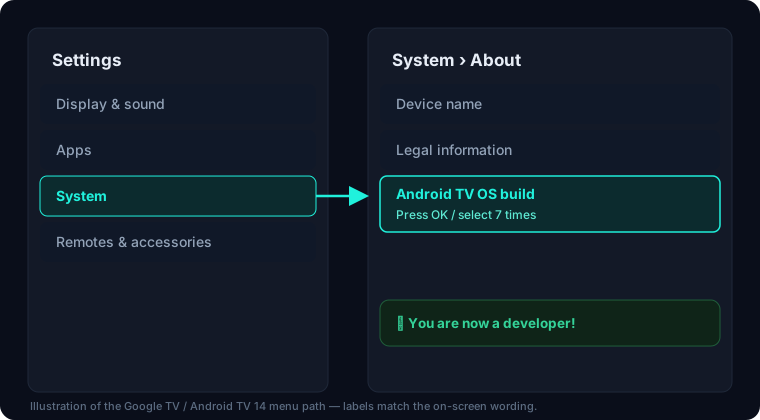
- 1Enable Developer Options: go to Settings > System > About, scroll to the bottom, and click 'Android TV OS build' about 7 times until you see the message 'You are now a developer!'
- 2Open the Google Play Store, search for 'Downloader by AFTVnews' (orange icon), and install it.
- 3Launch Downloader and, in the URL field, type the direct APK address for the app you want — for IPTV Smarters Pro, use the Android download from iptvsmarters.com; for TiviMate, you can use the widely published Downloader code 272483.
- 4When the APK finishes downloading, Downloader will try to install it and Android will block it with a security notice. Select Settings on that notice.
- 5On the 'Install unknown apps' screen, select Downloader and toggle it to Allowed.
- 6Press back, then select Install on the app install prompt and wait for 'App installed'.
- 7Select Done (not Open), then let Downloader delete the leftover APK file when it offers — it only wastes storage after installation.
- ✓Only download APKs from the developer's own website. Third-party APK portals repackage IPTV apps with adware, and a fake 'Smarters' clone can harvest the login you type into it.
- ✓No Play Store at all (uncertified generic box)? You can also copy an APK onto a USB stick, plug it into the box, and install it with the built-in file manager — same 'unknown apps' permission applies.
- ✓If the Unknown Sources toggle is greyed out, Developer Options didn't actually activate — go back and click the build number again until the 'You are now a developer!' toast appears.
Add your StreamVega playlist and EPG
With a player installed, the last step is logging in. Grab the credentials email from your provider — for StreamVega that's the server URL, username and password issued when your line was activated. The flow below shows TiviMate first, then IPTV Smarters Pro; every other Xtream-compatible player asks for the same three fields under slightly different labels.
In TiviMate: launch the app and select Add playlist > Xtream Codes login. Enter the server URL exactly as written (including the http:// and the port number if there is one), then your username and password on the next screens. TiviMate will process the playlist, show your channel count, and offer to download the EPG — accept it, since with Xtream Codes logins the TV guide data comes through automatically with no separate EPG URL needed.
In IPTV Smarters Pro: open the app, accept the terms screen, and choose Login with Xtream Codes API. Fill in any name for the profile, then your username, password, and the server URL, and select Add User. The app pulls Live TV, Movies and Series into separate tiles on its home screen.
If the login is rejected, don't retype it five times — a few failed attempts can temporarily flag your line. Check for typos (a trailing space after the password is the classic one), confirm your subscription is active, and test the credentials from another device. You can verify your line and see which server you're on with our connection checker, and confirm the service itself is up on the status page before assuming your details are wrong.
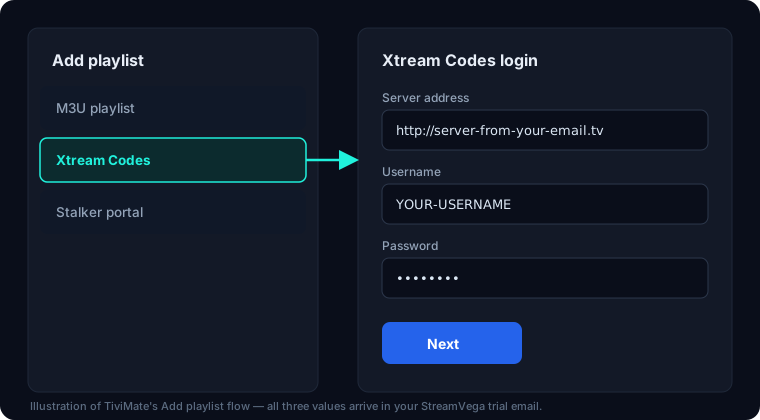
- ✓Type the server URL in lowercase and double-check colons and port numbers — the on-screen keyboard loves to autocapitalize and add spaces.
- ✓In TiviMate, set 'Update playlist on app launch' in playlist settings so new channels added by your provider appear without manual refreshes.
Device-specific notes: Shield, onn, Chromecast and generic boxes
Nvidia Shield TV / Shield Pro: still the best IPTV box you can buy in 2026, years after launch — its Tegra X1+ chip hardware-decodes 4K HDR at 60fps and it's one of the few streamers with true gigabit Ethernet. It runs the classic Android TV interface, so Developer Options live under Settings > Device Preferences > About. Use the Ethernet port, install TiviMate from the Play Store, and you're done — this is the lowest-friction setup in this entire guide. The Pro model's USB 3.0 ports also make USB-stick sideloading trivial.
Walmart onn 4K box (US): astonishing value at around $20. It runs full Google TV with the Play Store, so both methods above work unchanged. Limits: Wi-Fi only (no Ethernet port without a USB-C adapter), 2 GB of RAM, and it can stutter on very high-bitrate 4K streams. For 1080p IPTV it's excellent for the price.
Google TV Streamer / Chromecast with Google TV: the Streamer (2024+) replaced the Chromecast line and adds an Ethernet port — use it. The older Chromecast with Google TV (2020) is Wi-Fi-first with limited internal storage, so uninstall unused apps before sideloading and expect to lean on 5 GHz Wi-Fi. Both run Google TV, so the Developer Options and 'hidden sideloaded apps' notes above apply directly.
Generic Chinese Android boxes: these usually run an uncertified 'AOSP' Android build. Some include a working Play Store, many don't, and some ship with a preloaded fake one. If Play Store apps won't install, go straight to the Downloader or USB method. Be realistic about hardware: boxes advertising '8K' with 1 GB of RAM are marketing fiction, and weak Wi-Fi radios in these boxes cause more buffering complaints than any server ever does.
Network and playback settings that actually matter
IPTV is live video — unlike Netflix, the app can't buffer three minutes ahead. That makes your local network the deciding factor in stream stability. Rule one: use Ethernet whenever your box has a port. A wired connection eliminates the packet loss and latency spikes that cause the classic IPTV freeze-every-30-seconds pattern, and it matters most for high-bitrate 4K streams. On the Shield or Google TV Streamer, plugging in a cable is a bigger upgrade than any app setting.
If you're stuck on Wi-Fi: connect to the 5 GHz band of your router (the network name often ends in '5G' or '5GHz'), get the box within a room or two of the router, and keep it off crowded 2.4 GHz. Bandwidth itself is rarely the issue — a stable 25 Mbps handles 1080p60 with headroom, and 50+ Mbps covers 4K — see our internet speed for IPTV breakdown for real numbers per quality tier.
In-app settings worth touching: in TiviMate, if a specific channel stutters or shows a black screen with audio, open playback settings for that channel and switch the decoder from hardware to software (or try a different player engine in Smarters under Settings > Player Selection). Leave everything else at defaults until you have a problem. If streams still stutter after wiring up and switching decoders, work through our buffering troubleshooting guide — it covers DNS, router QoS, and how to tell a local problem from a server-side one.
- ✓Reboot the box every few days — Android TV boxes accumulate background cruft, and a 30-second reboot fixes more mystery stutter than any settings change.
- ✓Avoid Wi-Fi range extenders for the room with the TV; they halve throughput and add jitter. Powerline adapters or a mesh node with an Ethernet jack are far better.
Key takeaways
- →TiviMate installs straight from the Google Play Store on Android TV and Google TV — no sideloading needed for most people.
- →IPTV Smarters Pro was removed from Google Play after a court order, so on Android boxes it has to be sideloaded from the developer's official site.
- →Sideloading on Google TV requires enabling Developer Options first: Settings > System > About, then click 'Android TV OS build' about 7 times.
- →Use Ethernet (or at least 5 GHz Wi-Fi) — wired gigabit on boxes like the Nvidia Shield is the single biggest buffering fix.
- →You only need three things from your provider: server URL, username and password (Xtream Codes login).
FAQ
- Can I install TiviMate on Google TV?
- Yes. TiviMate is available directly on the Google Play Store for Android TV and Google TV devices, including the Google TV Streamer, Chromecast with Google TV, onn boxes and Nvidia Shield. Just search the Play Store on your device and install it — no sideloading required. Note it's a TV-only app, so it won't appear in the Play Store on your phone.
- Is IPTV Smarters Pro on the Google Play Store?
- No. The genuine IPTV Smarters Pro was removed from Google Play following a LaLiga court order, and listings using that name on the store today are unaffiliated clones. The real app still works fine — download the APK from the developer's official site (iptvsmarters.com) and install it with the Downloader app or a USB stick.
- Why can't I find my sideloaded app on the Google TV home screen?
- Google TV sometimes doesn't show sideloaded apps in the favorites row or Apps tab. The app is installed — open it via Settings > Apps > See all apps, then add it to your home screen favorites so it's one click away next time. On classic Android TV (like the Nvidia Shield), sideloaded apps appear in the normal apps list.
- How do I enable Developer Options on a Chromecast or Google TV box?
- Go to Settings > System > About, scroll to the bottom, and click 'Android TV OS build' about seven times until you see 'You are now a developer!'. On older classic Android TV boxes the same option is under Settings > Device Preferences > About > Build. After that, Android will let you grant the 'Install unknown apps' permission to Downloader when it tries to install an APK.
- Is the Nvidia Shield still worth it for IPTV in 2026?
- Yes — it remains the benchmark. Hardware 4K HDR decoding, gigabit Ethernet, USB ports and years of ongoing software updates make it the most reliable IPTV box available, even against newer hardware. If it's over budget, the Walmart onn 4K box or Google TV Streamer handle 1080p IPTV very well for far less money.
- Should I use Ethernet or Wi-Fi for IPTV on an Android box?
- Ethernet, every time your device has a port — it removes the packet loss and jitter that cause live-stream freezing. If you must use Wi-Fi, connect to your router's 5 GHz band and keep the box close to the router. Total speed matters less than stability: a steady 25 Mbps beats a spiky 200 Mbps connection for live TV.
Related guides
Try it yourself — free for 24 hours
No credit card. We send your login by email or WhatsApp, usually within minutes.
- No credit card
- Login in minutes
- Cancel anytime